The three shortcuts from the Reel, step by step: Plan Mode so Claude thinks before it edits, Rewind to undo anything Claude changed, and screenshot-to-website with a single paste. Exact keys for Mac, Windows and Linux, copy-paste prompts, and the official docs.
Came from the Reel? You commented HACKS. Here is everything, with one-tap copy.
Before you start: Claude Code needs a paid Claude plan (Pro, Max, Team or Enterprise) or a Console account. The free claude.ai plan doesn't include it.
Setup
Install Claude Code (macOS, Linux, WSL)
curl -fsSL https://claude.ai/install.sh | bash
Install Claude Code (Windows PowerShell)
irm https://claude.ai/install.ps1 | iex
Start it inside your project folder and log in
claude
Free download
🎁 Download the cheat sheet (PDF)
All three hacks, keys and prompts on one printable page. Keep it next to your terminal.
In plan mode Claude reads your files and writes a step-by-step plan, but makes no edits until you approve it. Perfect for big changes, unfamiliar code, or when you want to check its thinking first.
You need
Claude Code, open in your project folder
Press Shift+Tab. Each press switches to the next permission mode.
Keep pressing until the status bar at the bottom says ⏸ plan mode on. Depending on the mode you start in, that's 2 or 3 presses.
Describe what you want to build or fix.
Read the plan. Ask for changes, or approve it and Claude starts editing.
Windows: if Shift+Tab doesn't switch modes, try Alt+M.
Command
claude --permission-mode plan
Prompt
I want to add a password reset flow. Read the auth code first, then give me a step-by-step plan with the files you'd change. Don't edit anything yet.
Tip: The command above starts Claude Code directly in plan mode, so you don't have to press anything.
Claude Code saves a checkpoint before every prompt you send. If Claude breaks something, you can jump back to any earlier prompt and restore your code, the conversation, or both.
You need
Claude Code (checkpoints are on automatically)
Make sure the prompt box is empty. If it has text, double Esc clears the text instead.
Press Esc twice (or type /rewind).
Pick the prompt you want to go back to.
Choose Restore code and conversation, Restore conversation, or Restore code.
Your files are back. Try again with a better prompt.
Command
/rewind
Prompt
That approach broke the tests. Let's try a different one: keep the old API and add the new feature behind a flag.
Tip: Rewind only covers edits made with Claude's file tools. Changes from shell commands like rm or mv aren't tracked, so keep using git for real version history.
Paste a screenshot of any page, app or design straight into Claude Code and ask it to build it. Claude reads the layout, colors and spacing and writes the code.
You need
Claude Code
A screenshot of the page or design you want
Copy a screenshot to your clipboard. Mac: Cmd+Ctrl+Shift+4. Windows: Win+Shift+S.
In Claude Code press Ctrl+V to paste it (Windows and WSL: Alt+V; iTerm2: Cmd+V). You'll see [Image #1].
You can also drag the image file into the terminal, or type its path.
Type your prompt and press Enter.
Ask Claude to open the result in your browser and compare it with the screenshot.
Prompt
Build this page as a responsive website with HTML and CSS. Match the layout, colors, fonts and spacing as closely as you can, then open it in my browser.
Tip: Use plan mode first for bigger pages: Claude lists the sections it sees before it writes any code.
 Claude Skill · free & open sourceThe free YouTube Agent Skill: 11 Claudes, and my 18-hook test
 GitHub · open source · side hustle4 GitHub repos as businesses: what 5 AI investors funded
 Claude Code · free & open source4 free GitHub repos for Claude (and the one I won't install)
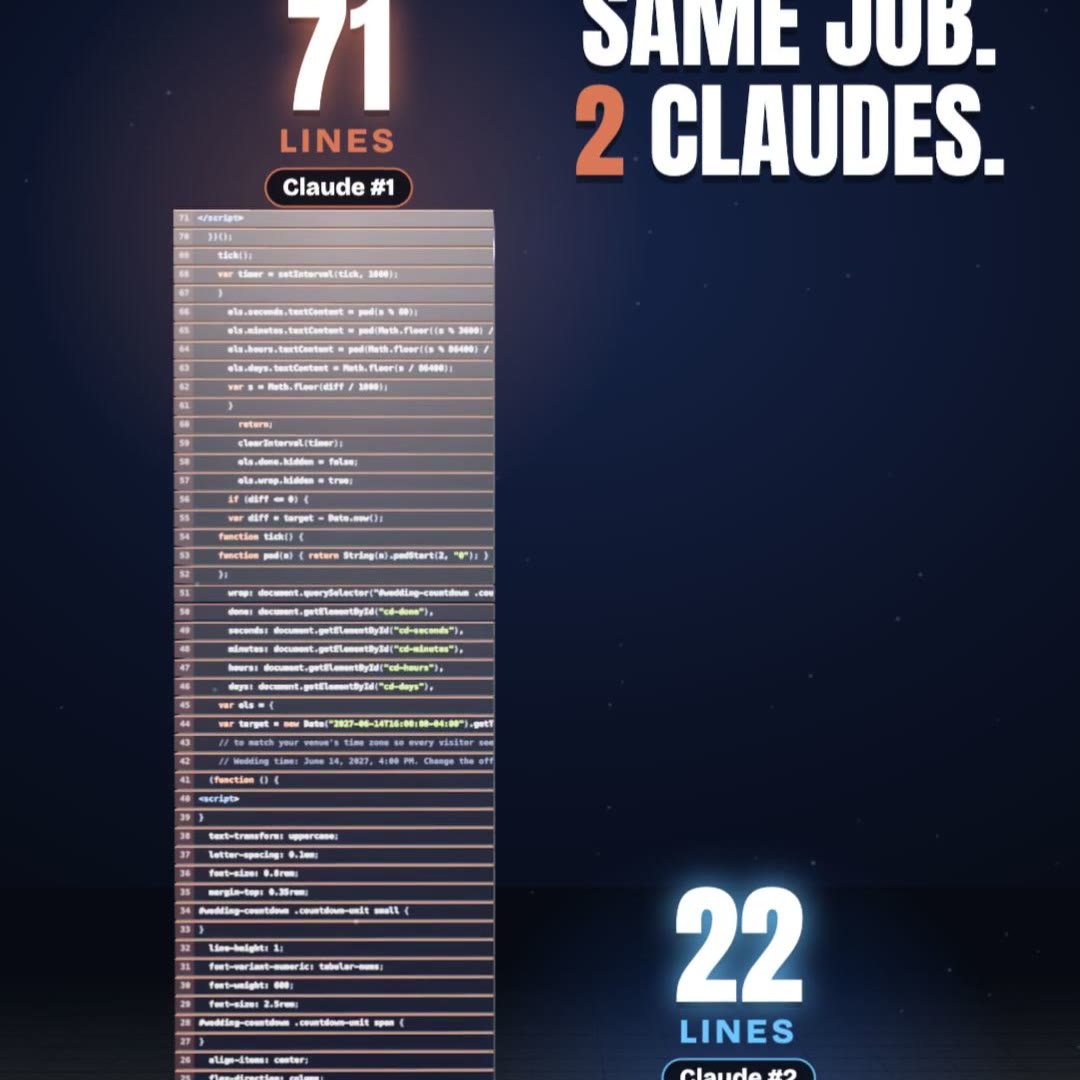 Claude Code · free pluginPonytail: same result, a third of the code
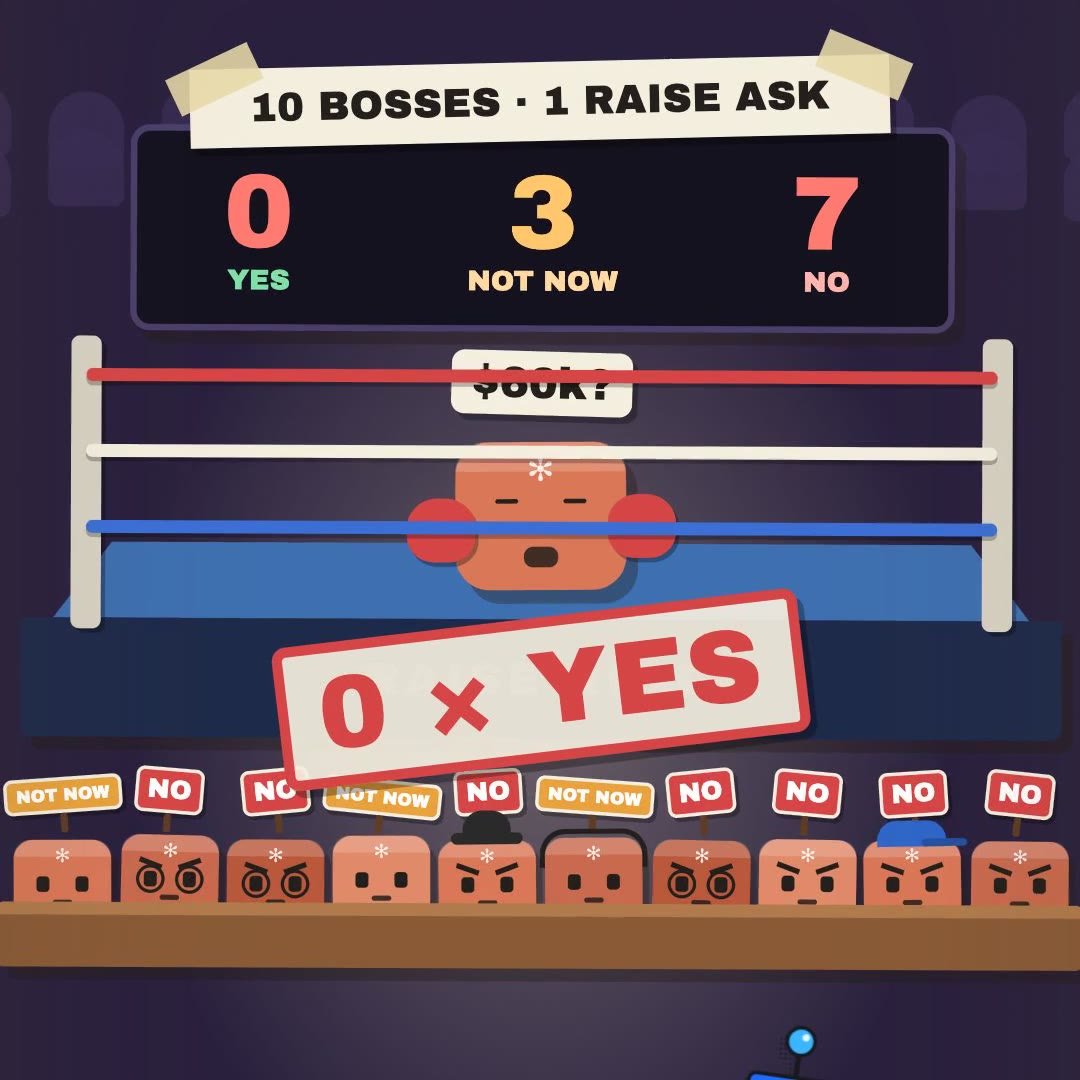 Claude Skill · freeRaise Ring: rehearse your raise ask against 10 Claude bosses before the real one
 Claude Skill · freeCrowd Test: show your launch to 20 Claude shoppers before real customers see it
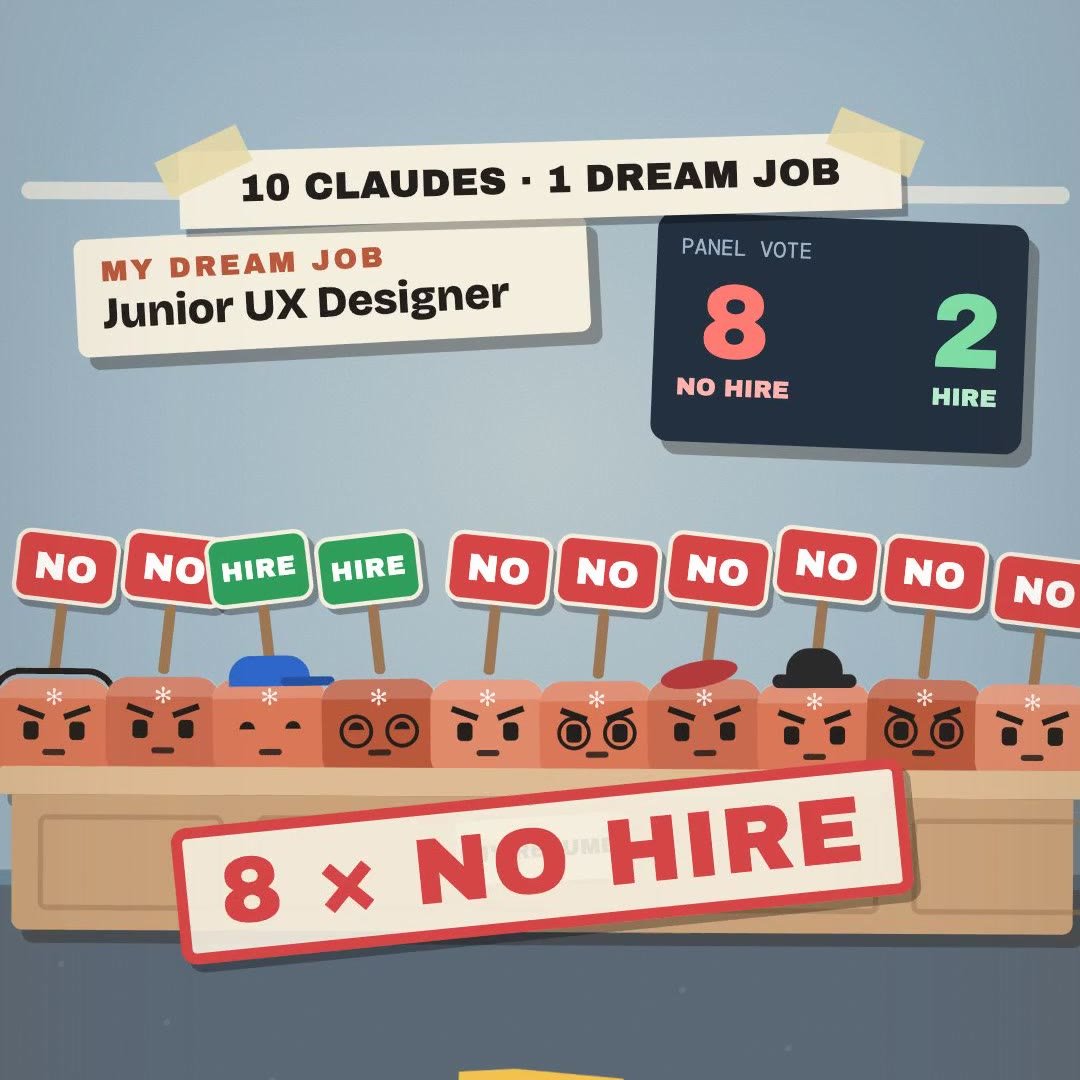 Claude Skill · freeHiring Panel: let 10 Claude interviewers vote on your resume before a real company does
 Claude Skill · freeIdea Court: put your idea on trial in front of 12 Claude jurors